So my CNC design is coming along nicely now, and I'm really liking developing it in OpenSCAD. I'm trying to organize everything well to make the design easy to modify and come up with a good work flow for going from designing individual components, to fitting them together into assemblies, to actually generating the toolpaths to cut out the parts on a CNC router.
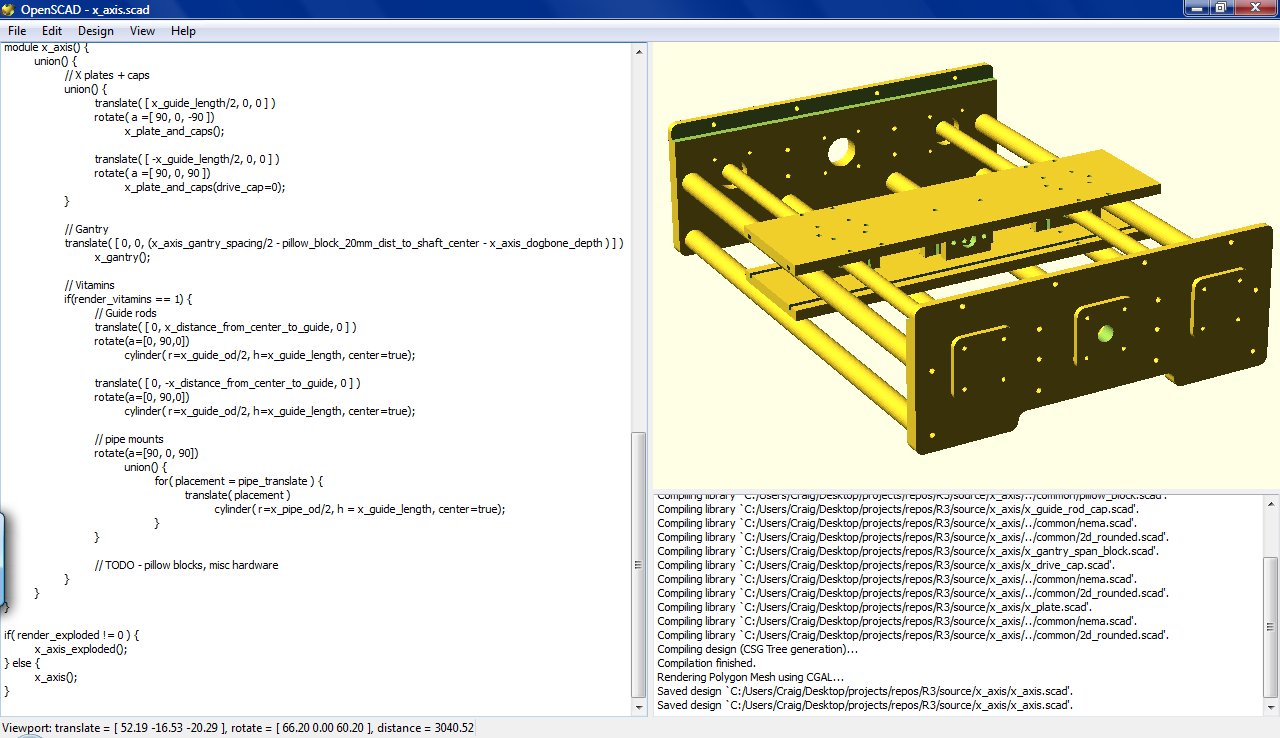
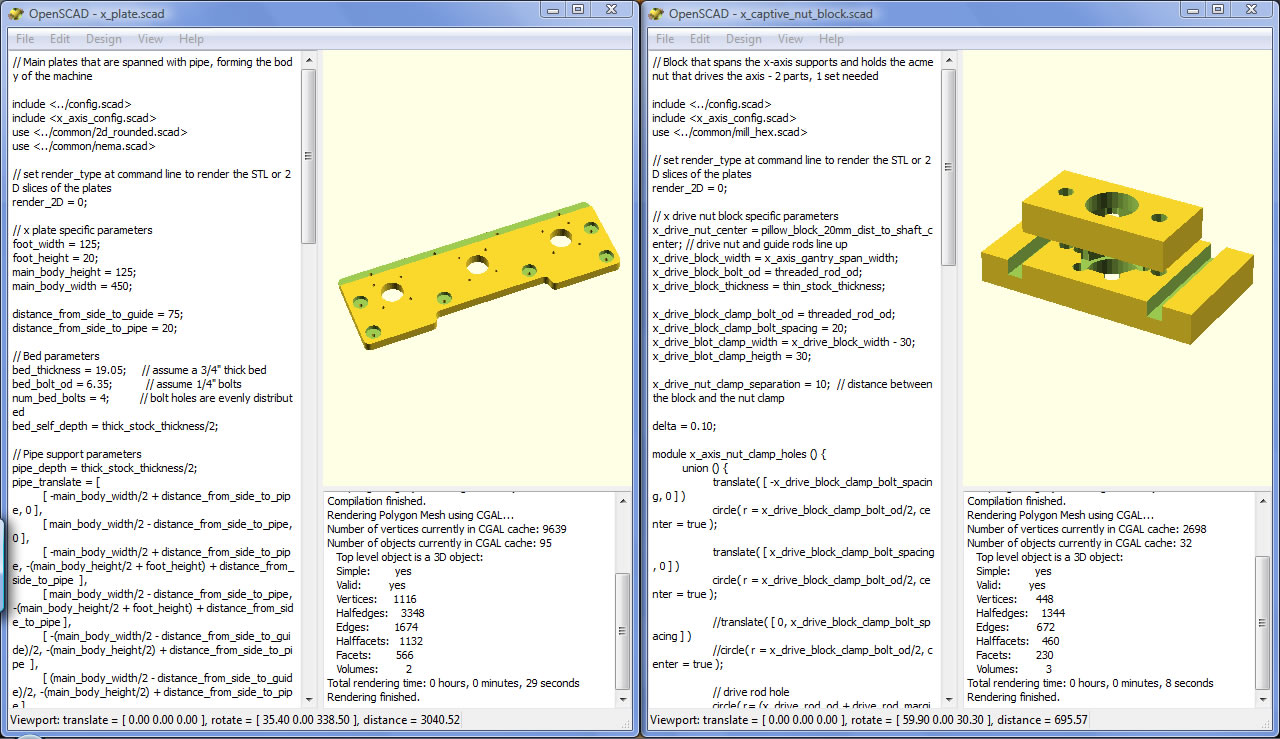
One of the cool things you can do if you build full assemblies from your individual parts in OpenSCAD (or any CAD program, really) is do a quick first pass of your design and make sure everything fits together nicely. Here's an example issue I caught when looking at my X-axis assembly:
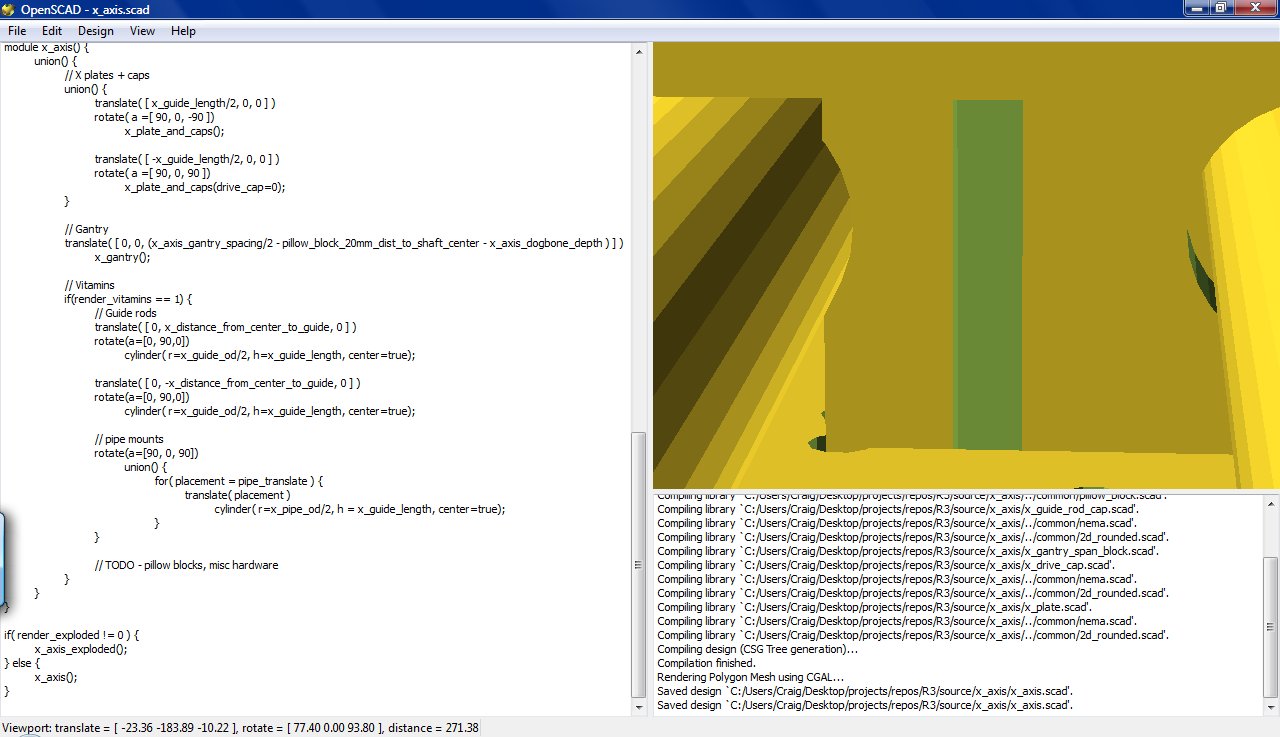
One of the pipes that span the X-axis frame intersects the spans of the gantry. To fix this I can open the include file for the X-axis and change a single line that defines how wide the spans are or the spacing of the guide rods, recompile, and end up with this:
Problem fixed! If I extend this approach and make an assembly for each full functional unit, each axis, each tool head, etc., I can throw them all together and see how my whole final machine will look and identify problems with the design before I start cutting parts. Moreover, others can also easily see how the hole thing fits together, make changes, and check their mods easily as well. That's the plan at least.
One thing many people might not know about laser cutters is that they require a lot of regular cleaning to keep them cutting effectively. You've got to clean the optics on a weekly basis, clean out any little bits that might have fallen through the vector grid and wipe down the depth plunger and guide rods monthly, and oil the linear guides and clean the positioning strip every couple of months. Who'd have thought selectively vaporizing stuff was so messy?
One other thing that I have to do about every six months is degrease the vector grid (yes, you have to regularly degrease some of your laser parts). Before I get ahead of myself, I should probably explain what I mean when I say vector grid. The vector grid is a metal comb that you set the material you're going to be cutting through on top of. It's designed to support the material you're cutting and allow the laser to pass through it to prevent burning the back side of the material you're cutting. It gets dirty because you're be blowing vaporized plastic (or resin if you're cutting wood) through it when you're cutting clean through material.
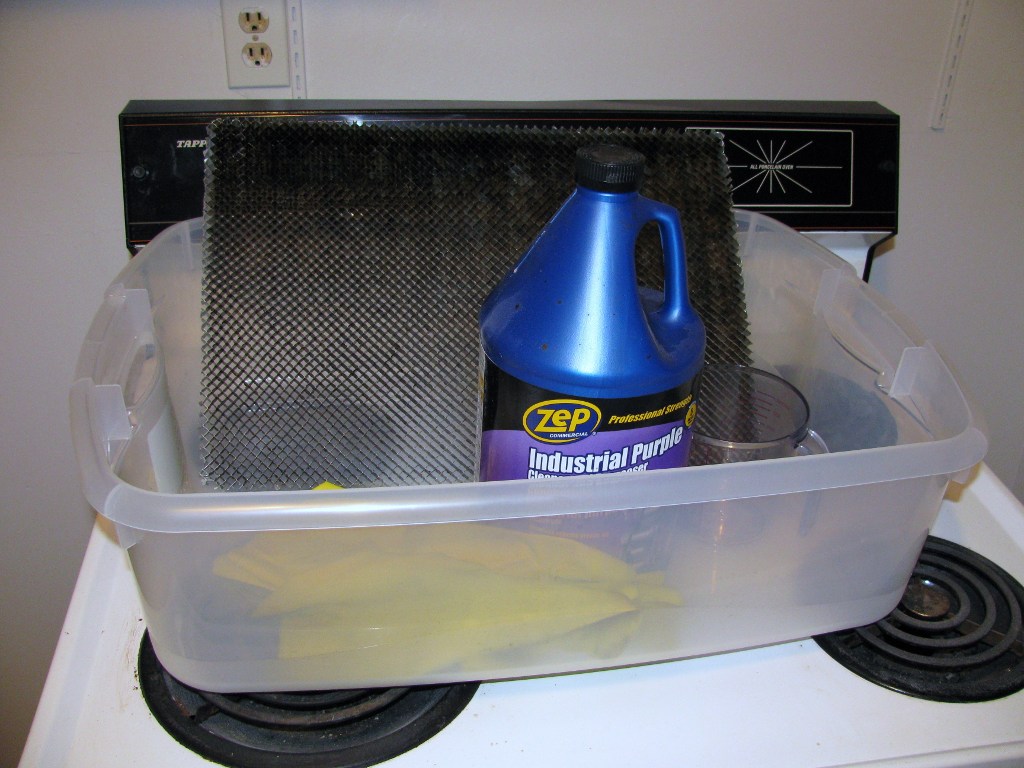
The manufacturer of my laser cutter, Epilog Laser, doesn't include instructions on how to clean the vector grid in their manuals, but they do have a nice guide online . I use about a 1:6 ratio of Zep purple degreaser to warm water compared to Epilog's suggested 1:4, and it seems to work fine for me. I've got a small plastic container that's only a little bigger than my laser bed that I use to soak my vector grid. It only takes about 12 cups of water to almost fully cover my vector grid in this container, so one gallon of Zep lasts me a very long time. You'll notice that I've got a pair of rubber gloves in my box of supplies. You definitely want to be wearing these and probably some goggles while working with the cleaning solution because Zep contains a number of bad things that can be absorbed through the skin (mainly Sodium Hydroxide AKA lye).
After dropping the vector grid in the diluted mixture it will start foaming all on it's own. I agitate the mixture a bit and keep the grid soaking for a little less than 5 minutes.
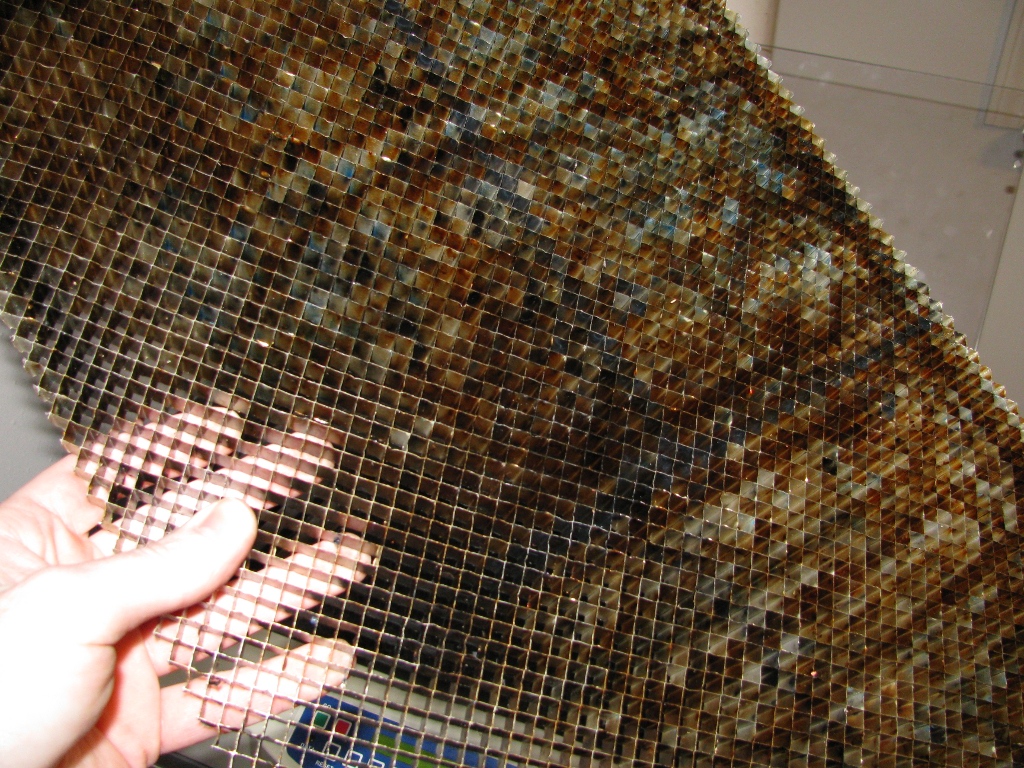
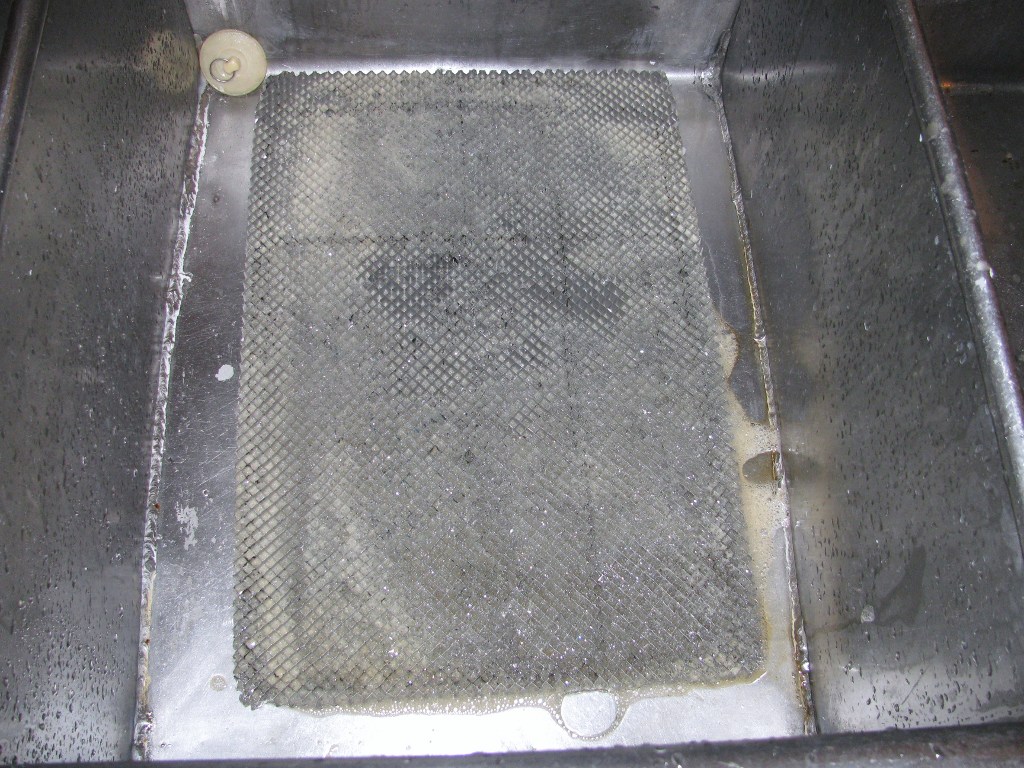
After soaking remove the grid and give it a good rinsing. When done rinsing, shake it out a bit over the sink and let it air dry completely before using it again. To give you an idea of how much stuff was pulled off the grid, the cleaning solution started off clear with a slightly purple tint and after soaking it's almost black:
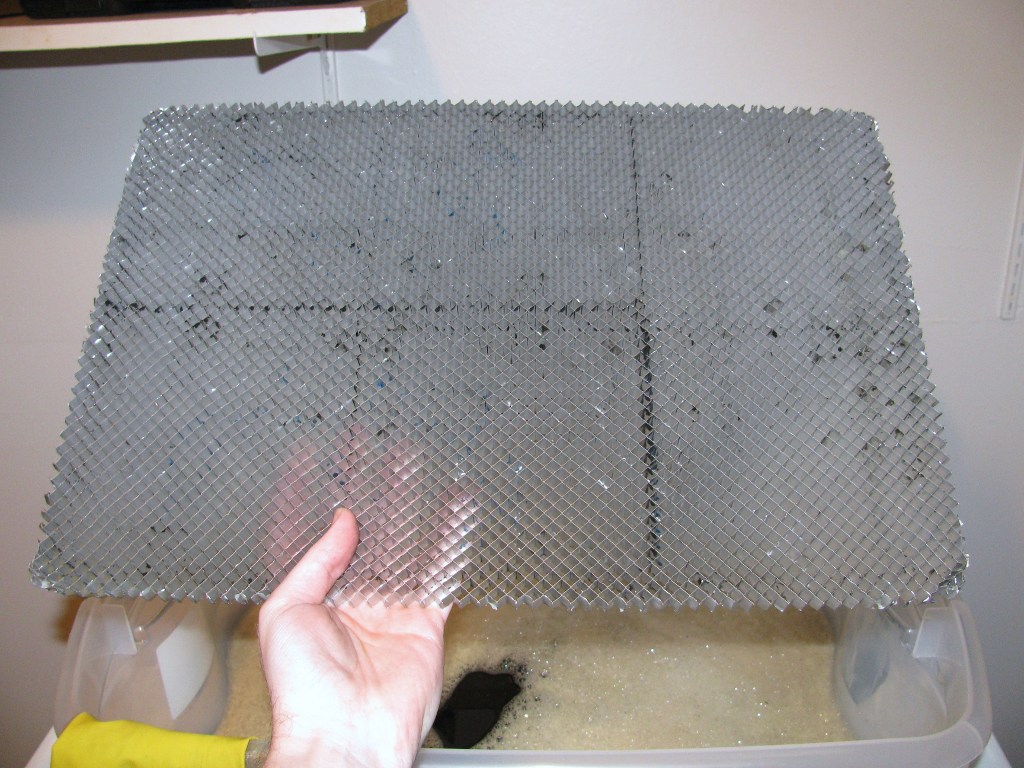
And here's the grid after rinsing:
There's still some black residue on there (ABS from the car tag blanks I make) because it was really caked on and I didn't get a plastic pipe out and clean out those cells. Be careful if you do choose to use pipe cleaners and scrub the vector grid, and just handling it in general, because it's made out of very thin aluminum an is damaged easily.
Building your own vector grid
Because certain materials get the vector grid gets very dirty, I wanted to make some spares. I threw some 1/2" in on one of my McMaster-Carr orders to see if it would be a usable substitute for the 1/4" cell spacing, 1/2" thick mat that came with the machine. I was able to cut it easily with a pair of scissors and get one full bed sheet and one that was a little under an inch short from the 24"x24" sheet I ordered.
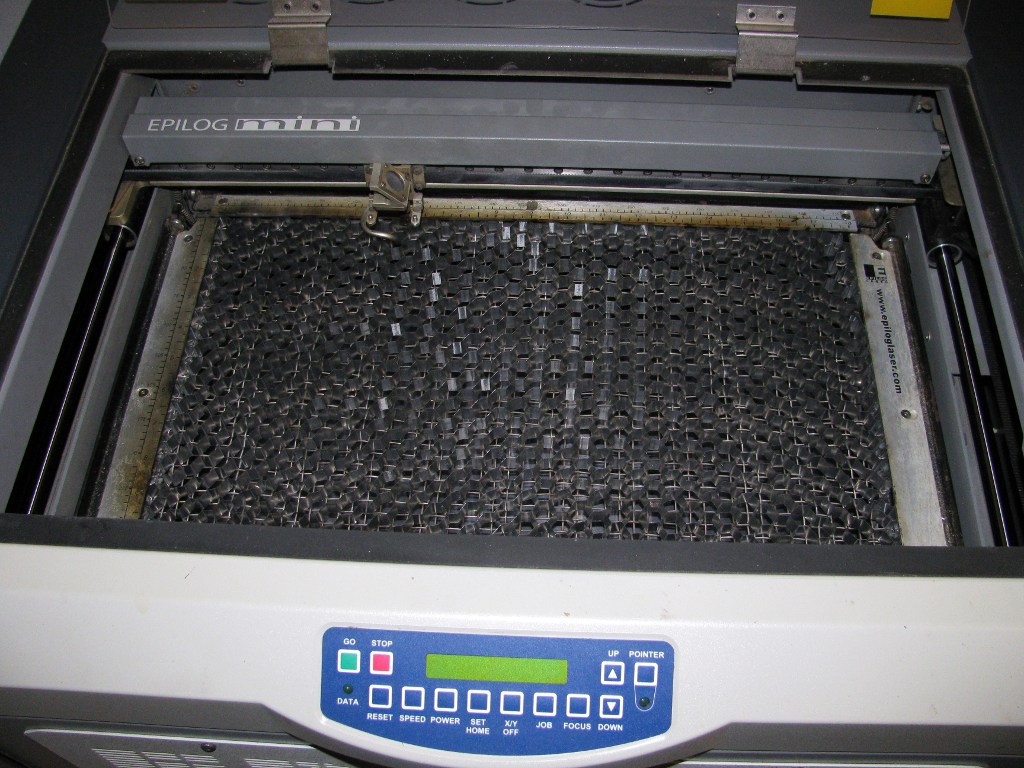
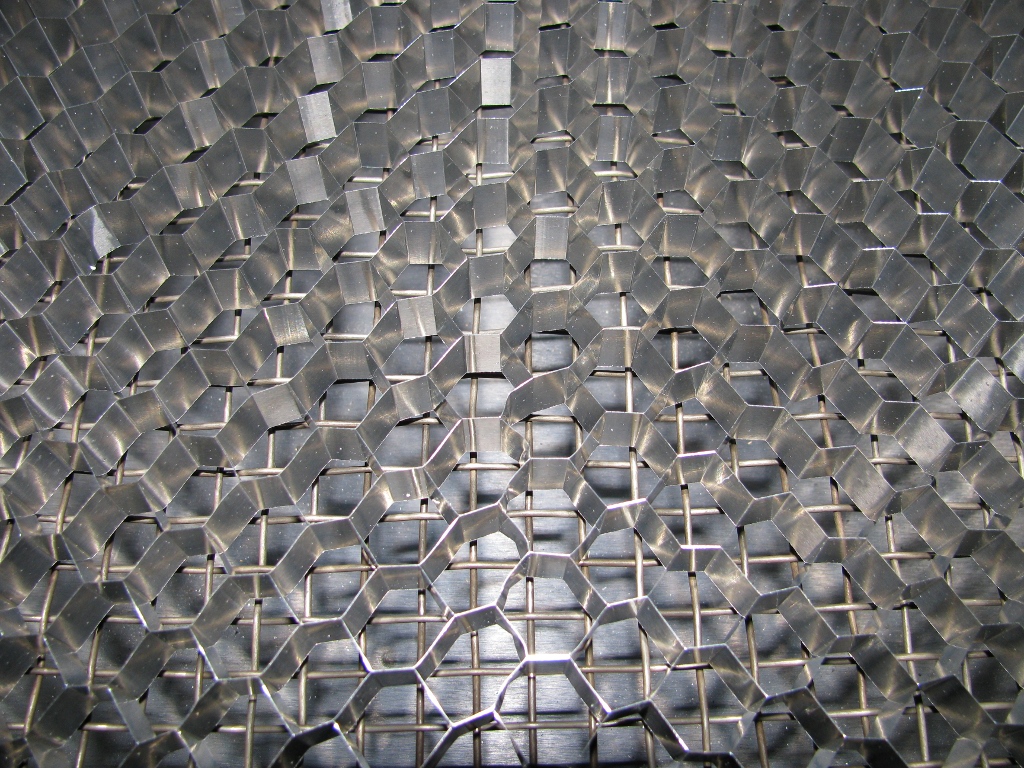
Unfortunately, it wasn't as rigid as the original vector grid and needed something to back it. Next McMaster-Carr order, I added some heavy to my order. This stuff cut easily with a pair of side cutters and was easy to fit to the cutter bed. I set the aluminum hex on top and it improved the rigidity:
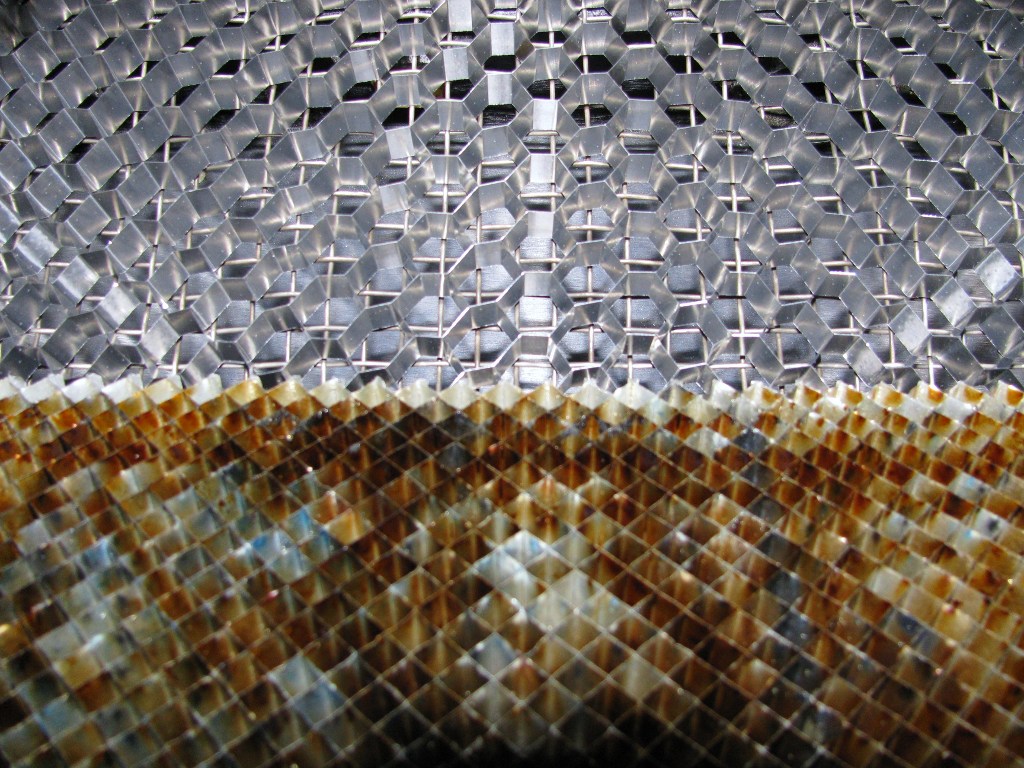
It's still not as rigid as the original vector grid but I think it'll work for what I'm cutting and all I'll likely have to do to fix this is switch out the wire mesh for some stiffer perforated metal in the future. Here's a comparison between the original grid and the new one:
The new, wider spaced grid looks pretty level and, even though it was never a huge problem, I'm hoping the wider spacing will result in fewer burn marks on the back side of the material I'm cutting than the stock grid.
Update:
I've been using the new vector grid for a bit now and I love it! Also, I talked to the local Epilog sales rep. and he said they ask about $395 for a replacement vector grid. I think I'll stick with my $35 spare for now.
I haven't been posting any projects, but I've definitely been working on stuff! If you don't follow my Thingiverse posts, I've leaned a little about character modeling in Blender and made me a ceiling cat for the shop:
I also made some spools for jumper wire that fit in my trusty electronics tackle boxes:
I've also been working on a set of parts that'll attach to a standard Cupcake CNC to add fume hood functionality for a fellow Makerbot operator. It's not done yet, but the parts I have done make it look like a little oven, which I think is pretty awesome:
I've also been working on the CNC router at CCCKC, which has had a few successful test cuts and should help me finish a few long-running projects I've had on the back burner. Check out this for video and some more info.
Lastly, I've been working on my self replicating CNC project again. I've decided to make this project even more ambitious and I've acquired most of the hardware that I think I'll need to finish it up, or at least get it off it's feet. I'm also learning OpenSCAD and doing all my initial design and prototyping in OpenSCAD. I'm going to try and use OpenSCAD to model all the milled components in 3D and then use OpenSCAD's 2D rendering capabilities to generate the DXF files that will eventually be used to generate tool paths to actually mill the parts. I'm trying to make the design very parametric and well organized so it'll be easy for me to tweak and easy for others to modify use the parts they have on hand or make new derivatives. The CCCKCCNC being up should help prototyping as well.
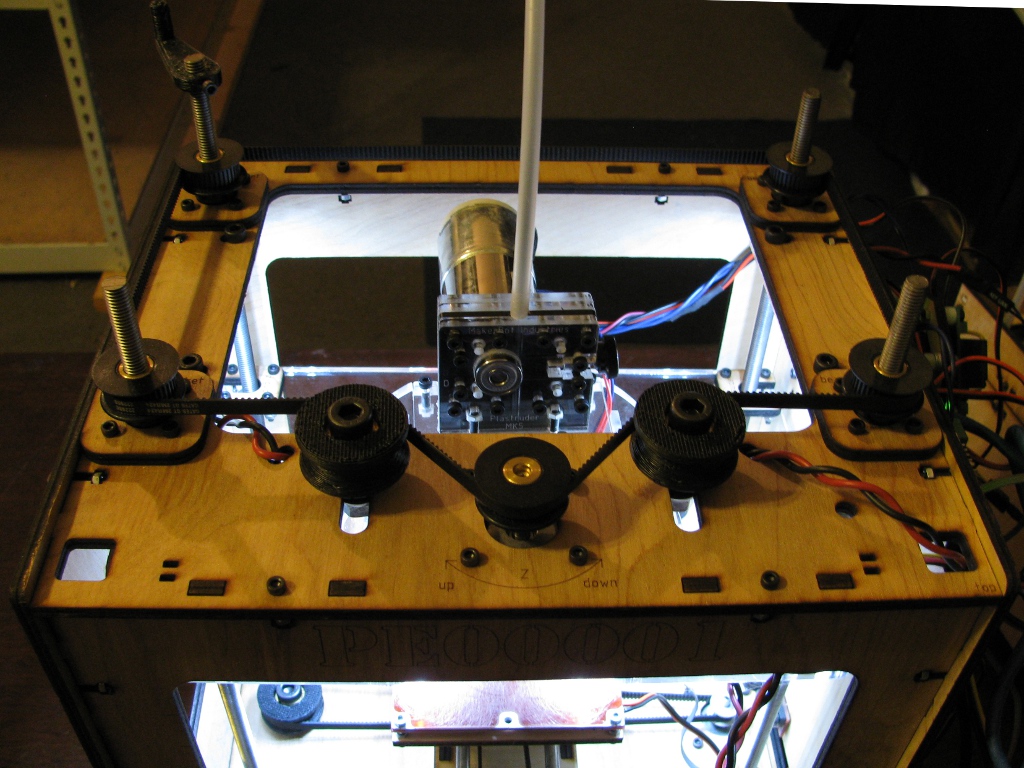
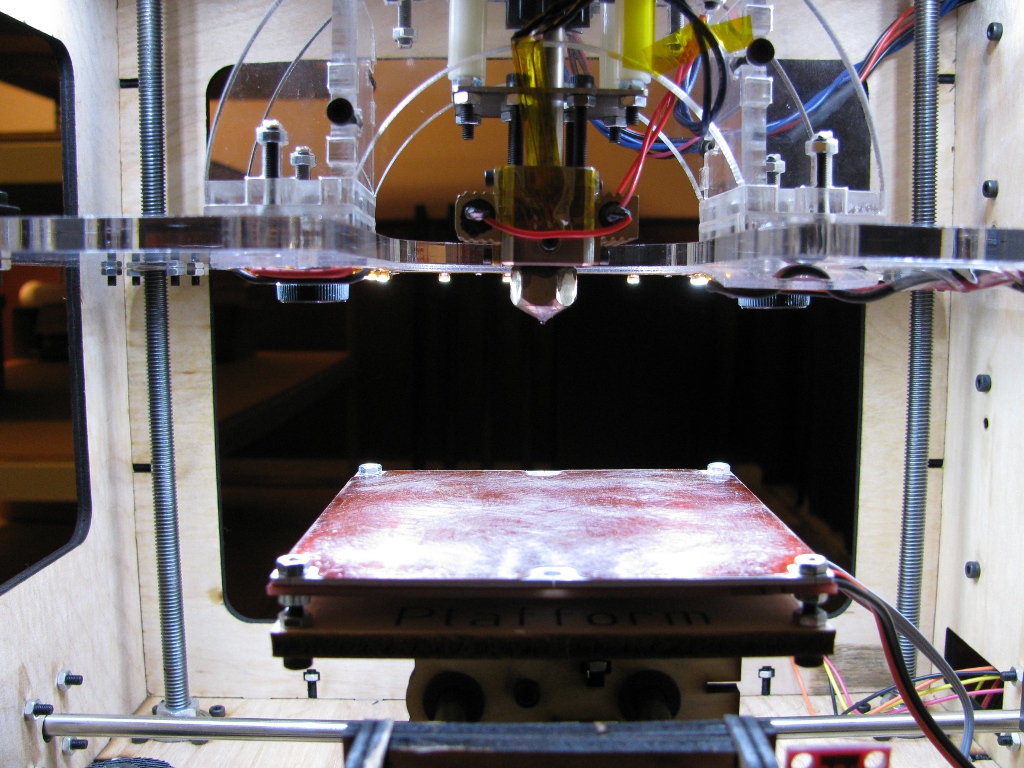
One of the things that's a nice addition to any Makerbot is internal lighting. I know I've held a lamp up to my bot more than a couple times to get a better look at what was happening at the nozzle. MakerBot Industries had a lighting kit earlier on and latter added . These strips come with adhesive backing and can bee hooked directly to a 12 Volt supply for power. Unfortunately, they don't come with much in terms of instructions for use, and they're permanent nature makes them less than ideal for people constantly upgrading or modifying their bots.
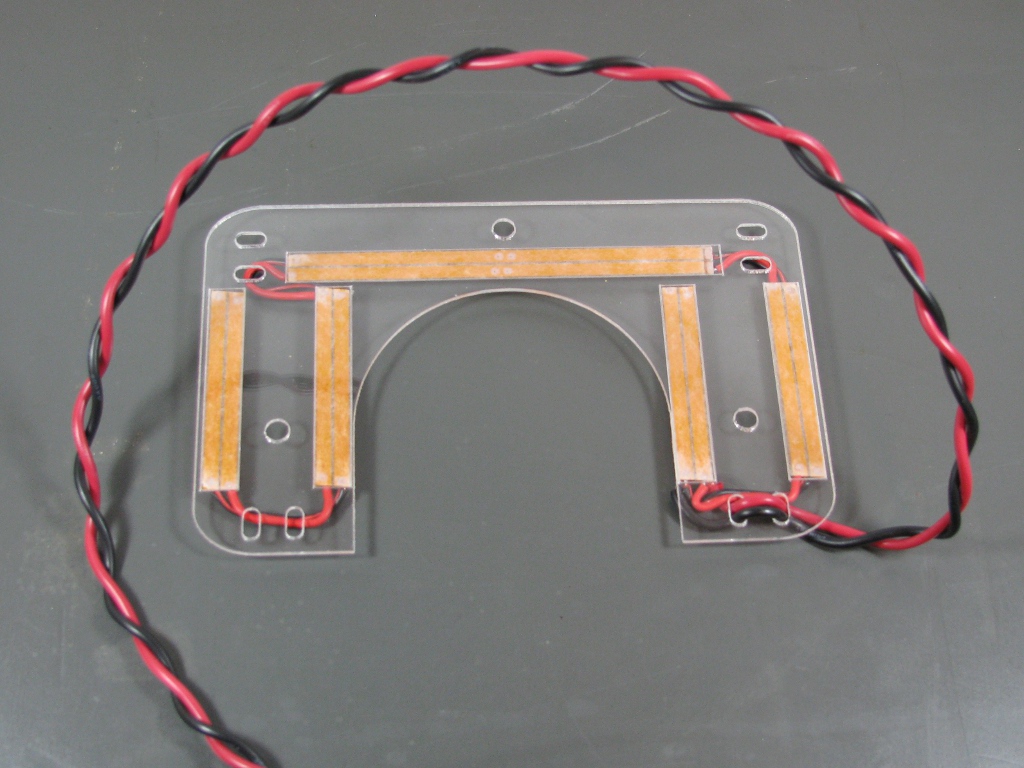
Using the LED strips as a starting point, I decided to make a modular lighting solution for my Cupcake CNC that I could swap to a Thing-o-Matic if I decided to upgrade. I created a few mounting plates that I could attach sections of my strip of LEDs to that I could also wrap my wiring through and could easily be attached and removed from my bot. One plate attached to the underside of the Z-stage, and two others that are mounted at the top of the bot's build chamber. You can grab the design files and a detailed BOM for this project . I'll cover the construction of the Z-stage assembly here, as it's a little more involved than the top assemblies and works on both the Cupcake CNC and the Thing-o-Matic.
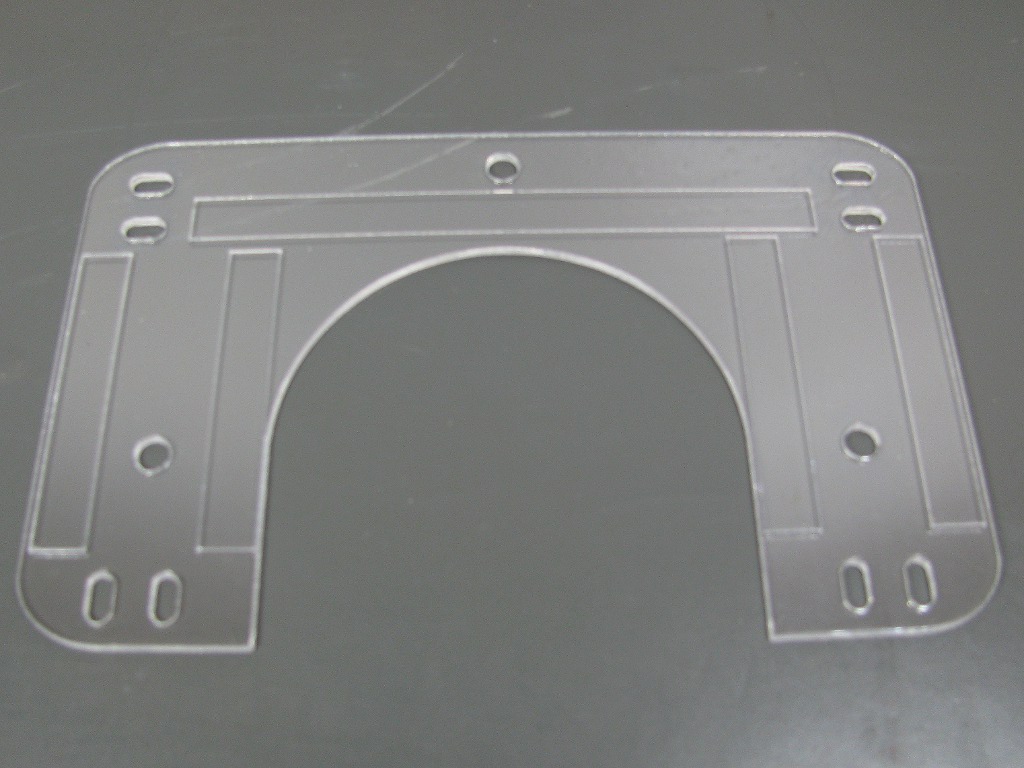
All plates are laser etched/cut from 0.06" thick sheets of PETG (kits are available with all the parts needed to assemble and mount the lights). PETG is great for this application because it's crystal clear like the acrylic the Z-stage is made out of but it's nowhere near as brittle. Below are some pics of the Z-stage plate before and after removing the protective film after laser cutting. The outlines that are etched on the plate show where the individual strips of LEDs go.
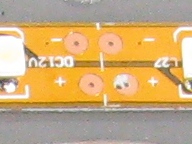
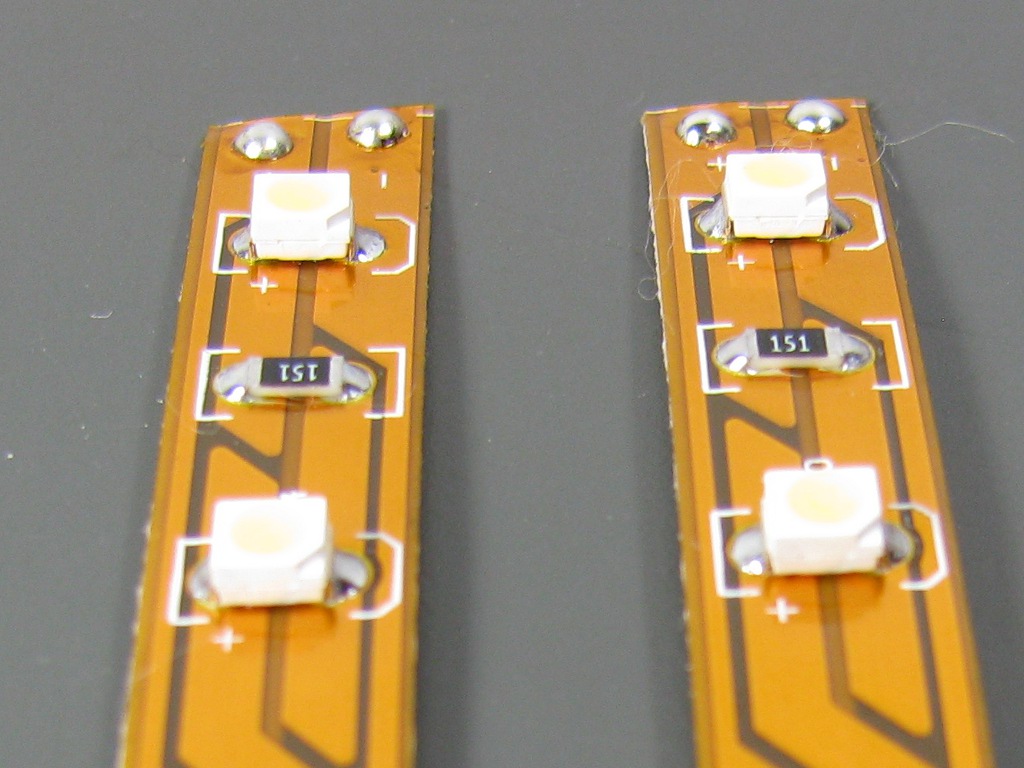
You'll need to cut four 2 inch long strips and one 4 inch long strip off of the end of your LED strip. Do not just cut these strips from anywhere in the length of the strip! The strip is actually divided up into groups of 3 LEDs in series with a small current limiting resistor in the middle. You'll need to cut the strip where one circuit ends and another begins. There will be a set of exposed copper pads clearly labeled + and - where this occurs. Cut in between these sets of pads leaving a set of exposed copper pads on each side of the cut strip (the white dashed line in the center of the picture below).
Once you've got the strips cut, get out your soldering iron and add a blob of solder to the exposed copper pads at both ends of each strip.
Next, remove the protective backing on the strips and attach them to the mounting plate. The outlines should make placement easy. Don't worry about strip orientation.
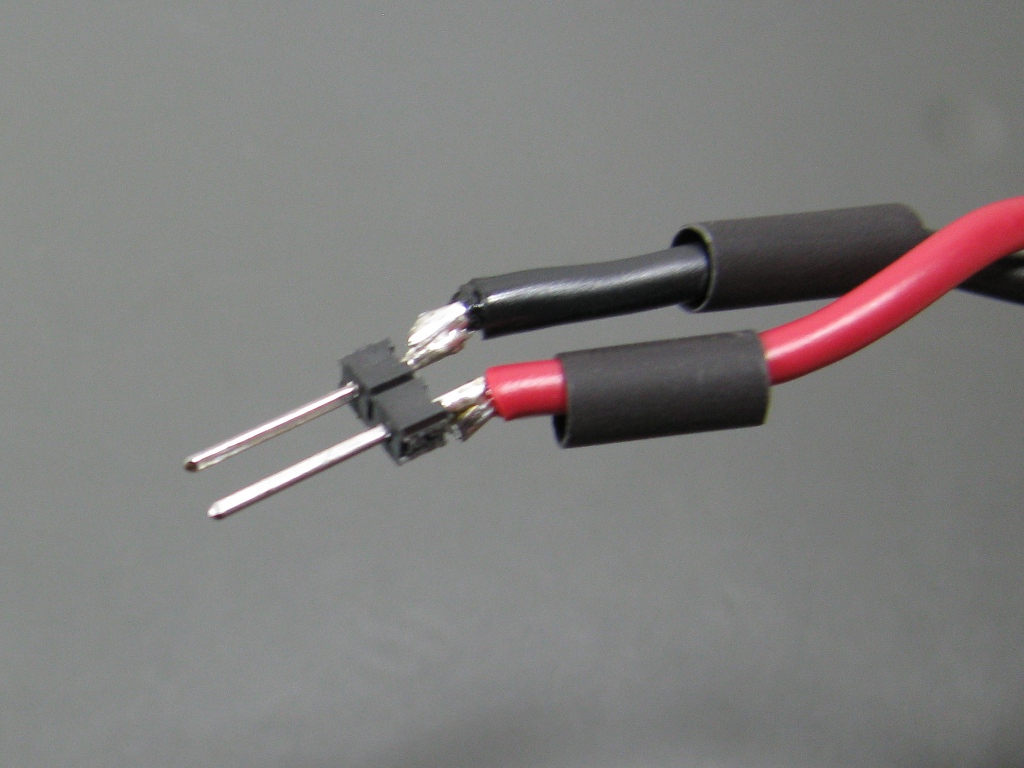
Before going much further, let's assemble the power connector. I opted for the simple solution and just used two 0.1" male headers for my power connector (This will eventually connect up to one of the 3-1/2" floppy power connectors on your ATX power supply) and some black and red 18 gauge wire twisted together with a hand drill for my power cable. If you picked up a kit from me, you'll have some nice 2 conductor Red/Black wire to wire everything up with. I removed less than 1/8" of shielding from the ends of my power wires and tinned them (applied a bit of solder) and tinned the 0.1" headers a bit too. I used 1/8" heat shrink on each conductor, and if you want to do this as well, make sure you place it on the wire before proceeding to the next step.
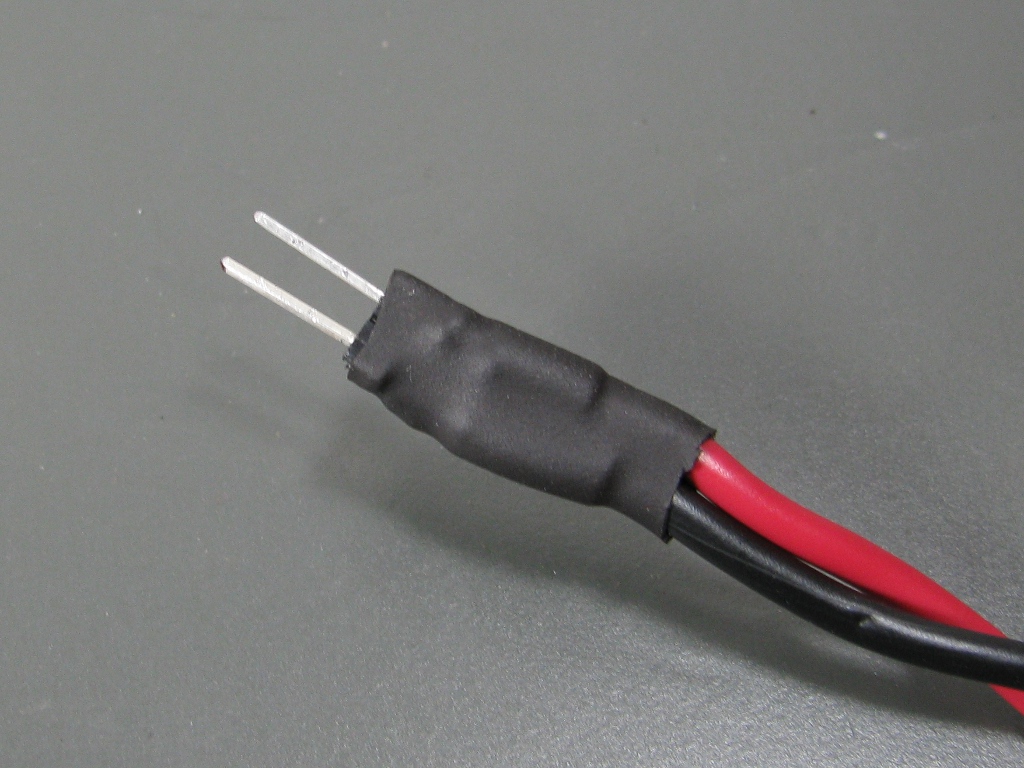
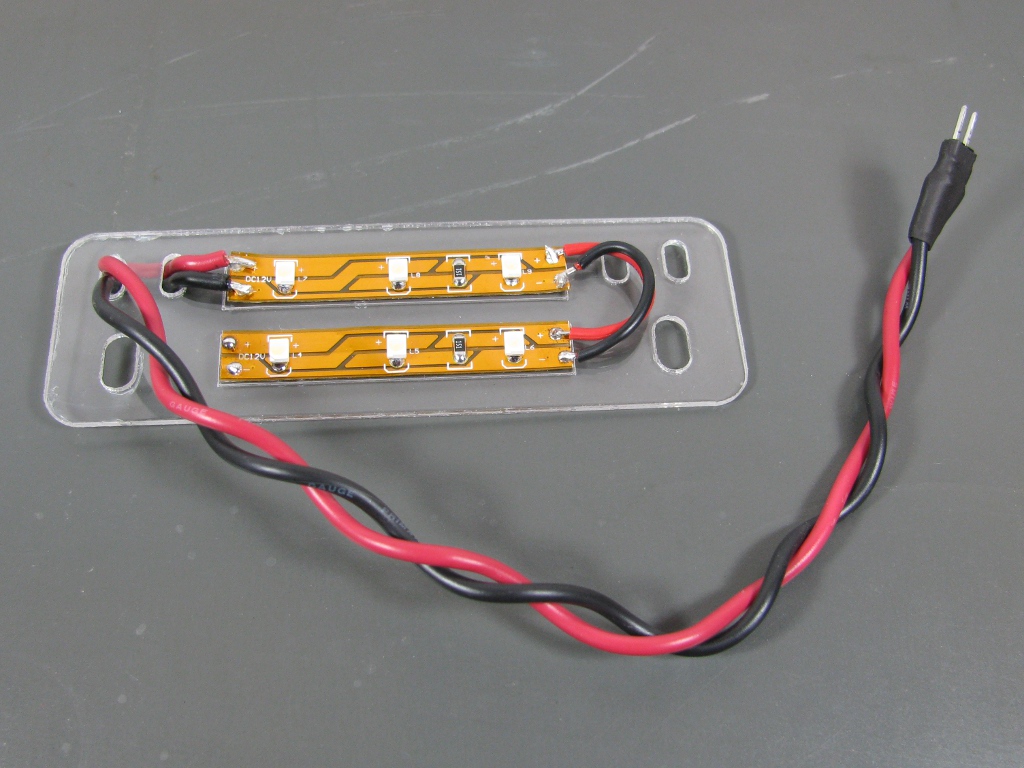
Next, solder the power wires to the header. If you've already applied solder the the header pins and the wire you should be able to simply touch them together and apply a little heat with the soldering iron to mate them. Do not hold the header while soldering the wires on! Also, make sure to solder the power wires to the shorter side of the header if there is one. Polarity doesn't matter at this point. It should look something like this when done:
Next shrink wrap the wires if so desired. I used a small length of 1/4" shrink wrap over the whole thing:
Now we can cut our power cable to length. I cut mine to 24 inches and had plenty of slack. Size it up on your bot if you're unsure how long you'll need to cut it to make it from your Z-stage to your power supply with a little slack for movement.
Next we need to finish up wiring the lights on the mounting plate. For this I used some nicer 2-conductor color coded red/black wire. Use the same technique of tinning the wires before mating them with the solder blobs you put down previously. If you do it right you should only have to touch each connection only briefly with your soldering iron to make the connection. Pay attention to the polarity of your connections when connecting the strips together. Positive and negative connections should be clearly labeled with + and - on the silkscreen of the strips. Positive connections go to positive and negative connections go to negative. As long as each individual strip has one positive connection and one negative connection they should light.
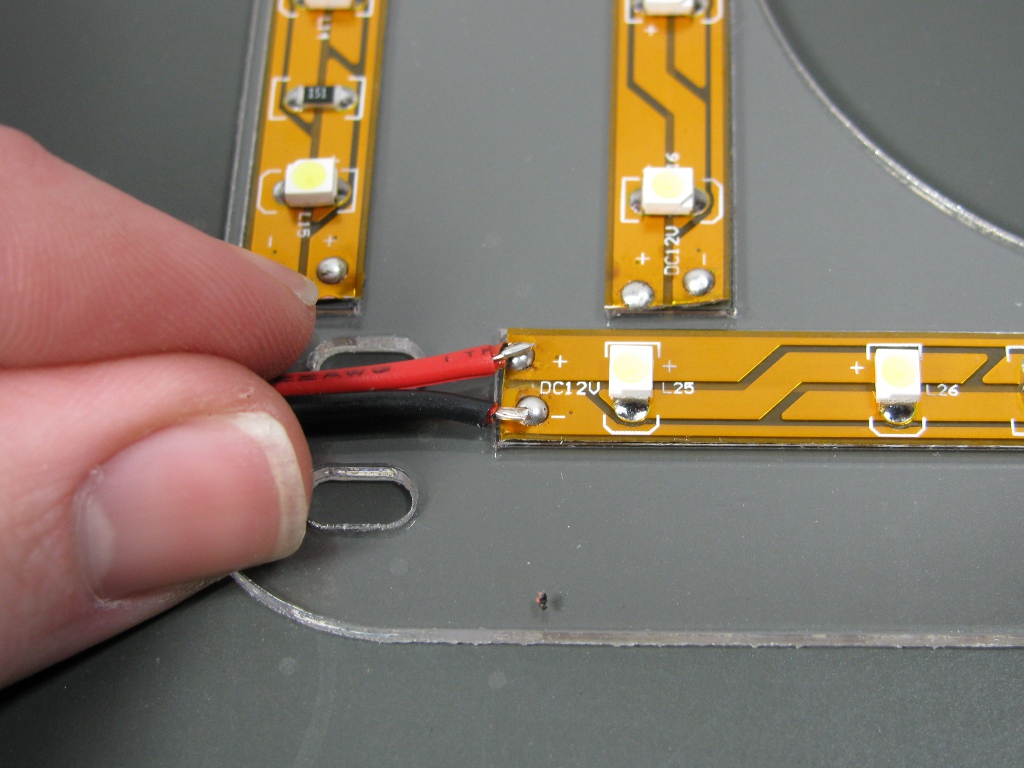
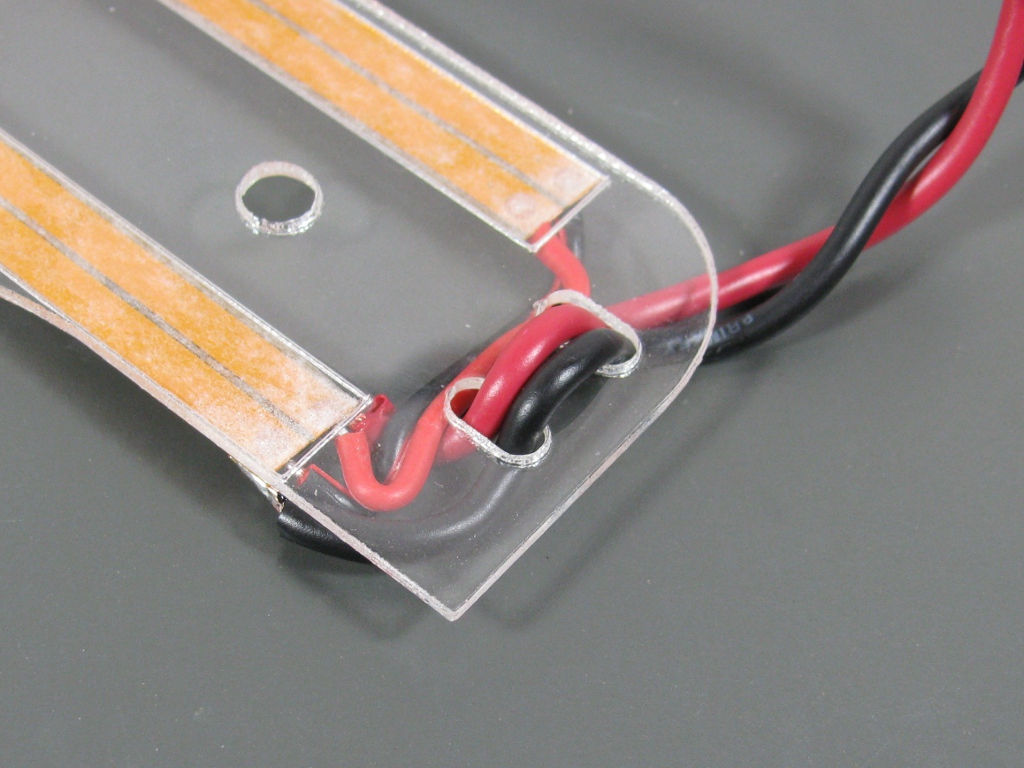
Next we need to connect up power. You'll notice that there are pairs of oval holes on the edges of the mounting plate. These are for power wiring. You'll want to fish the power wires in one of these paired holes and out the other:
This should help prevent damage to your lights if something accidentally yanks on the power cable. Next solder the power wires to the positive and negative pads on one of the LED strips. When you're done it should look something like this (again, if you picked up a kit you'll have red/black zip cord rather than the twisted pair pictured):
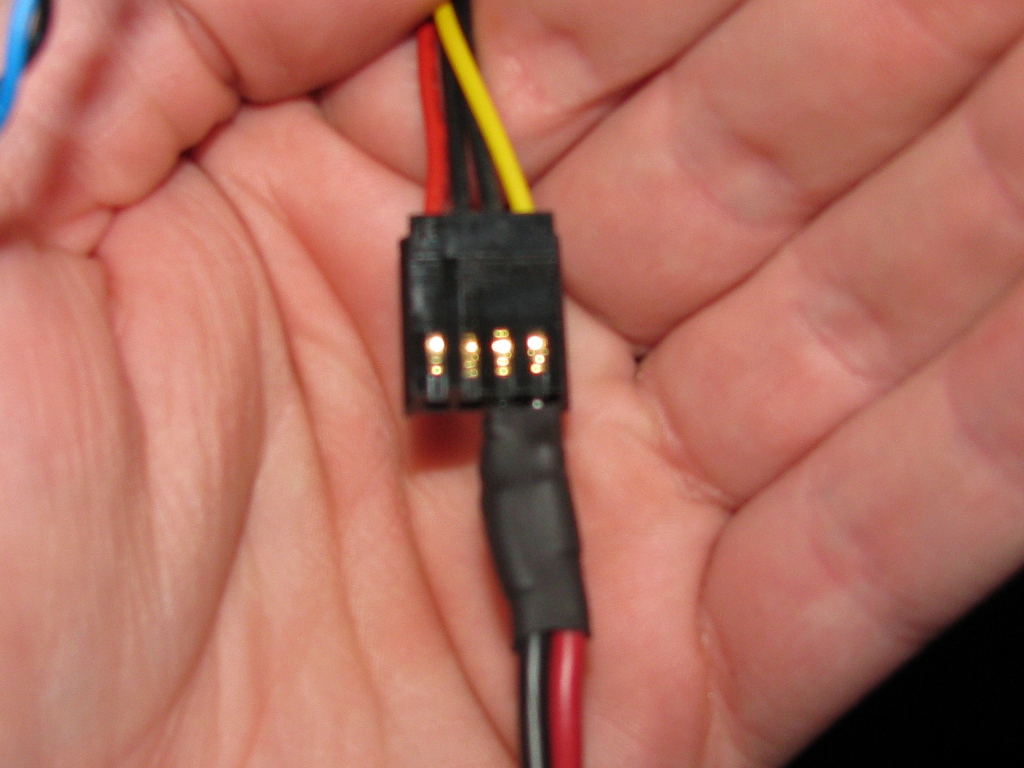
At this point you'll want to inspect your work, making sure you don't have any bridged connections or positive pads connected to negative pads. If everything checks out, it's time to test it out. Power up your bot and find a free 3-1/2" floppy power connector. If you've followed the standard wiring scheme of red being positive and black negative, you'll want to plug your header into the the power plug with yellow (+12V) matching up to red as shown below.
If everything is connected up correctly, you should see everything light up immediately:
Constriction of the two top light plates is almost exactly the same as the Z-stage plate but you'll want to adjust the length of the power wire you give each. The right top plate was relatively close to the power connector I was going to plug it into so I left it fairly short:
While I left about 2 feet of wire on the left top plate because I ran the wire for it across the front of the bot. Pay attention to where you will be running the power wires for each of these plates and make sure you don't cut their cords short!
Now the only thing left to do is attach it to your bot. The two top light plates attach easily with 2-M5x15 bolts each. I ran the wire for the left right light plate out of the hole on the back right of the bot. The right top light's power wire I ran through the M5 holes on either side of idler pulleys in the front of the bot and out the front right hole on the top of the bot:
Next you'll want to install the Z-axis plate. This plate is attached using the M5 bolts that hold your extruder to the Z-axis. Remove the bolts holding your extruder in place, slide in the plate, then re-bolt down your extruder. I added a third M5 bolt to hold the plate down that is installed just behind the extruder in one of the mounting holes that would be used to attach the pen plotter accessory. Make sure you install the bolt with the cap side down (like the rest of the extruder bolts) if you choose to install this third bolt. Lastly, check to make sure nothing is sticking down past the nozzle on your extruder so nothing can snag on your parts as they're being built!
I used some clear tape to tack down the power wires to the Z-stage and make sure they don't interfere with the operation of the machine.
That's it. Plug everything in, flip the power switch on your supply and the motherboard and proclaim "Let there be light!"
Here's some more pics with just the top lights on:
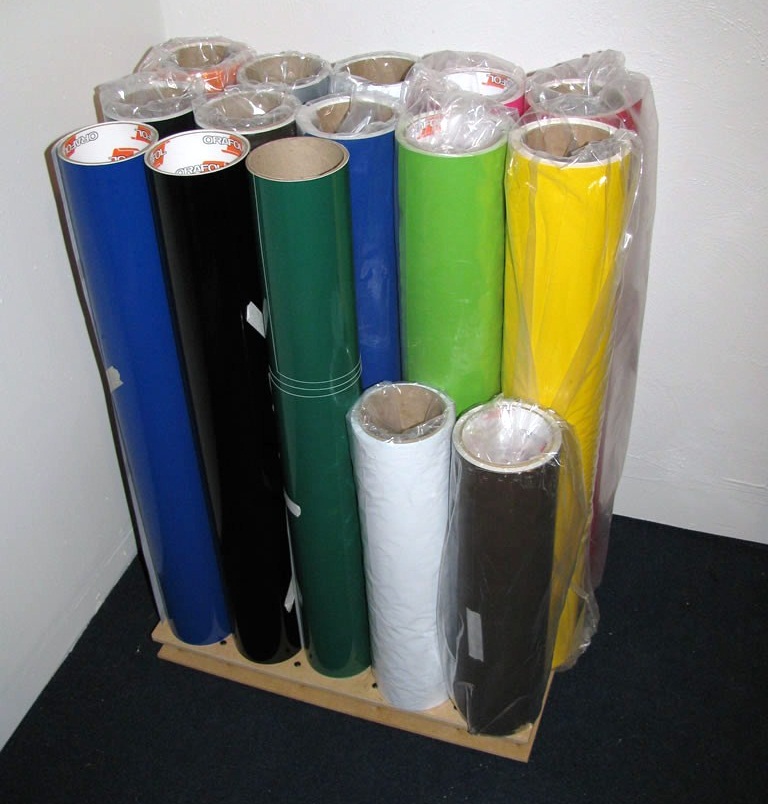
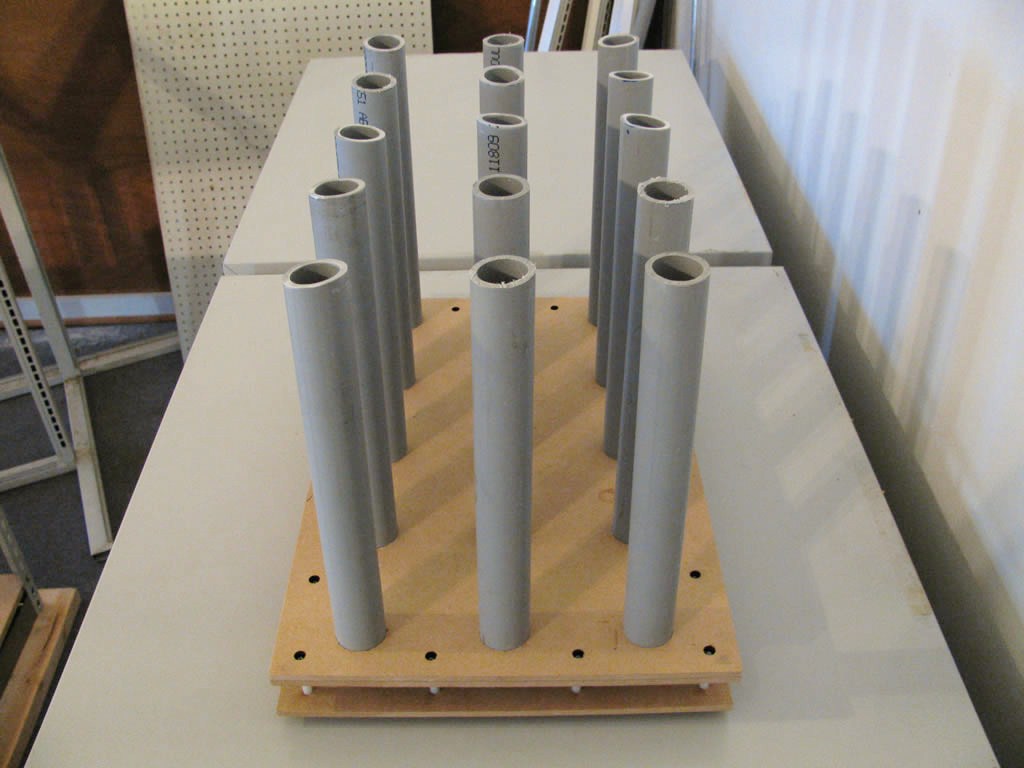
I recently acquired a vinyl cutter that came with a reasonable cache of sign making supplies. These supplies included several 24" and 15" rolls of vinyl that I had no easy way of storing, so I made a quick rack to store most of them (the alternative was buying a $50-60 wall rack I had to mount that only held 16 rolls or a $200 floor rack). I played with the idea of making racks that would work with some cheap I picked up, but in the end I opted for a simple floor rack because it was easier, and significantly cheaper, to build.
Materials
16 M3x40 bolts - Perfect length for spanning 2 sheets of 1/4" material using 1" spacers
16 1" Spacers - I had some around for stacking PCBs on my Makerbot
16 M3 nuts - I've got a lot M3 hardware because of Makerbot projects
Rubber feet hardware - Picked up at for $2
3-12"x18" Sheets of MDF - Available at Home Depot in 4'x2' sheets for about $6
15' 1" Schedule 40 PVC electrical conduit - About $2-3 for a 10' section
Wood Glue
Construction
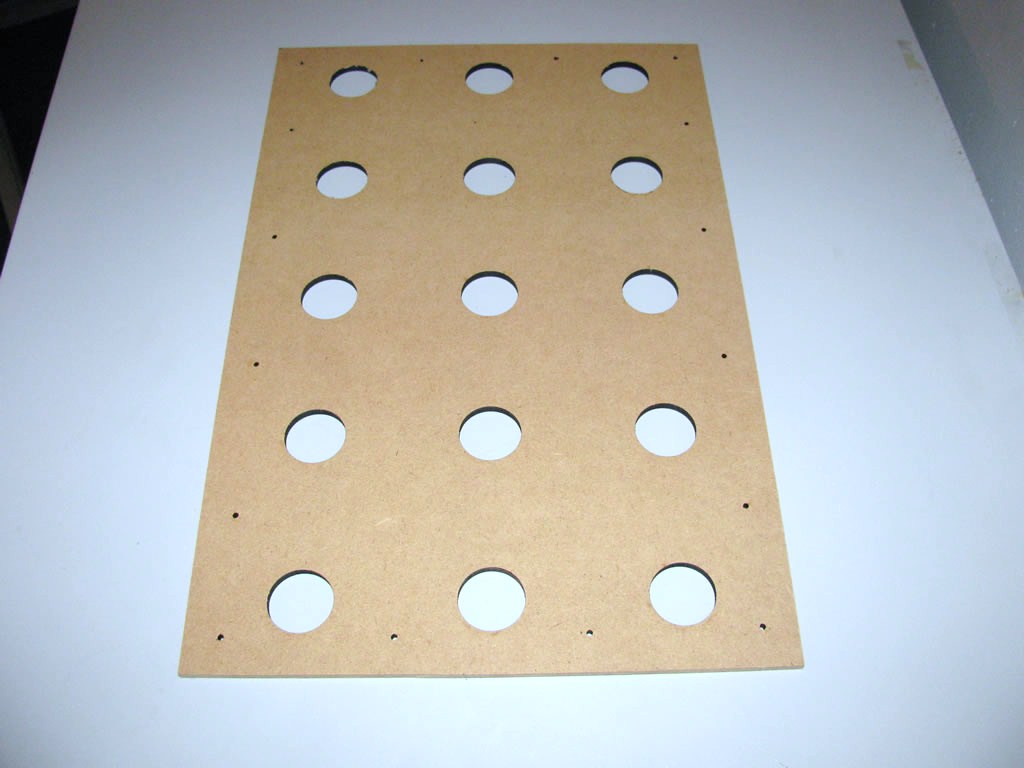
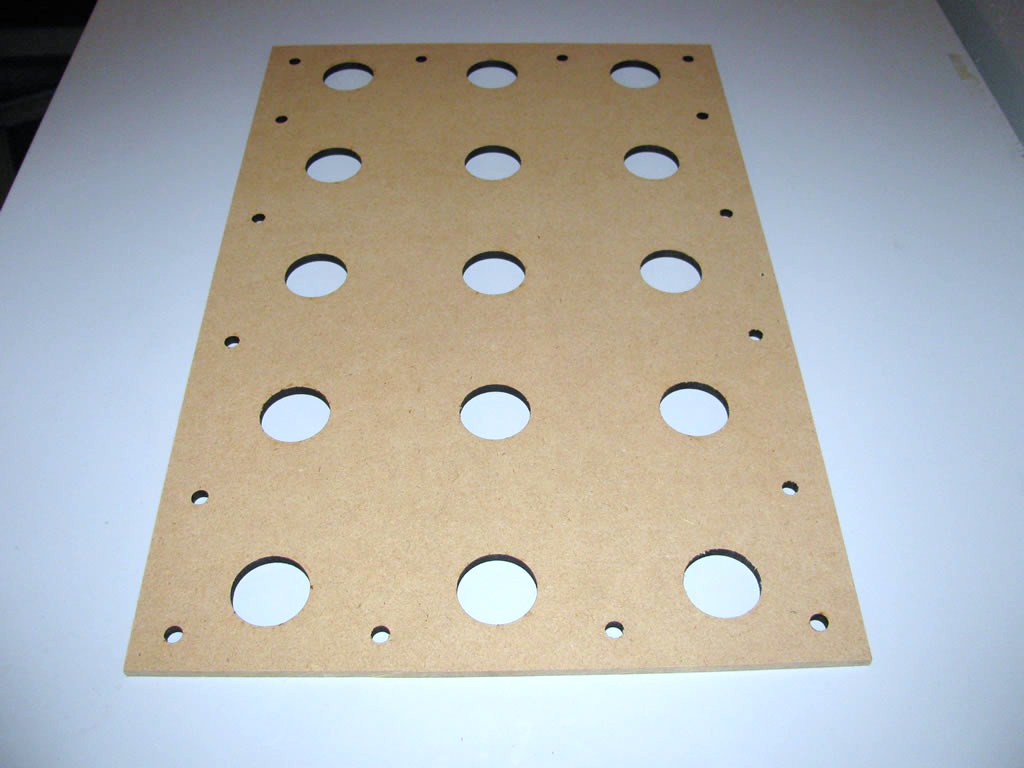
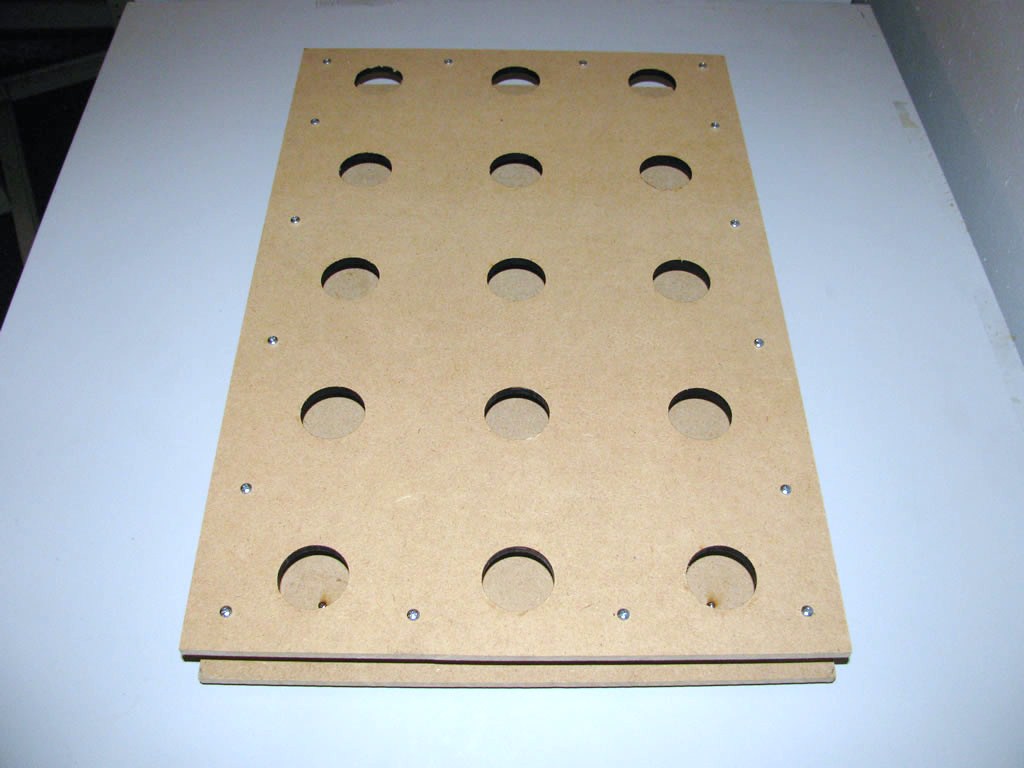
First you'll need to cut/drill your parts out. Get the design files and a more detailed BOM from the Thingaverse page for the rack . I cut out all these parts out of 1/4" MDF on my laser cutter, but you could easily just use a hand drill and a hole saw to make them.
Bottom MDF Sheet
Top MDF Sheet
Cover MDF Sheet
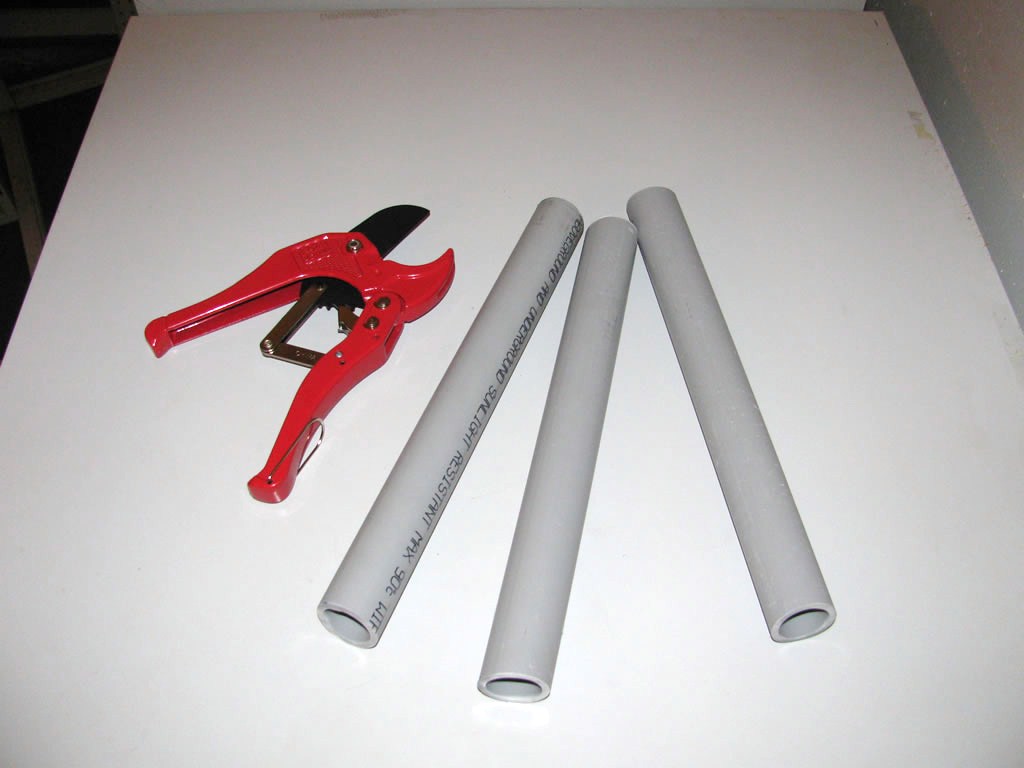
Next you'll want to cut your conduit into sections. You can make quick, clean (but not always straight) cuts with a pvc pipe cutting tool, pictured below. I used 1" schedule 40 electrical conduit, which is a little under 1-1/3" in diameter in 12" sections. You could probably get away with shorter sections and conserve a little conduit.
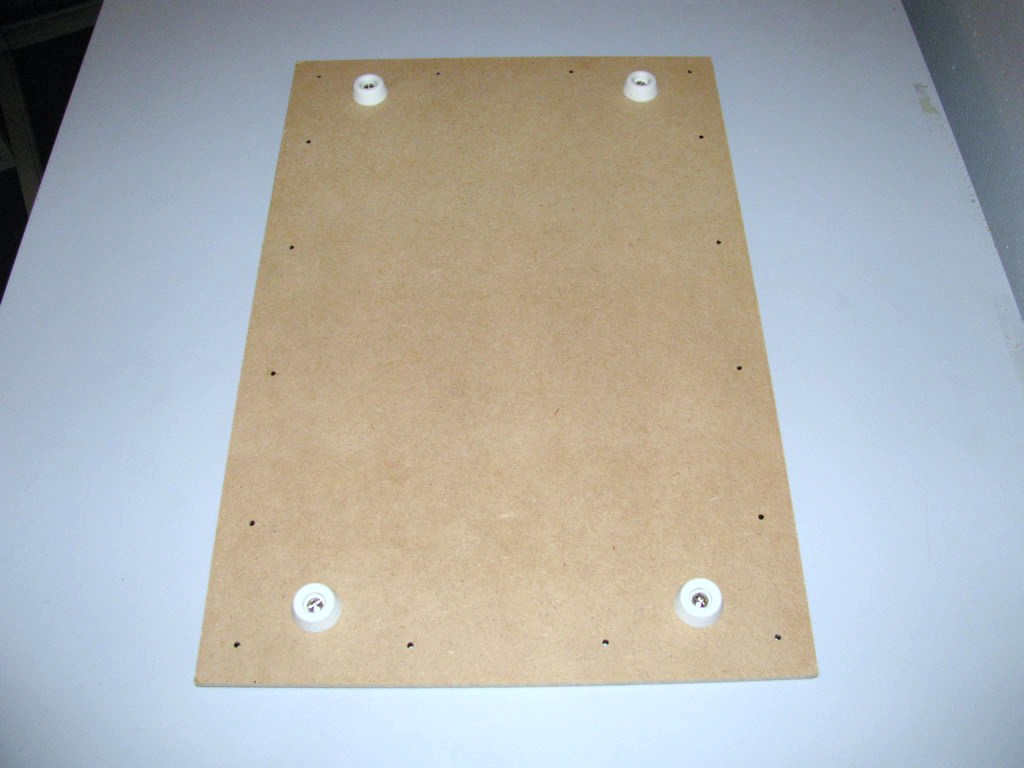
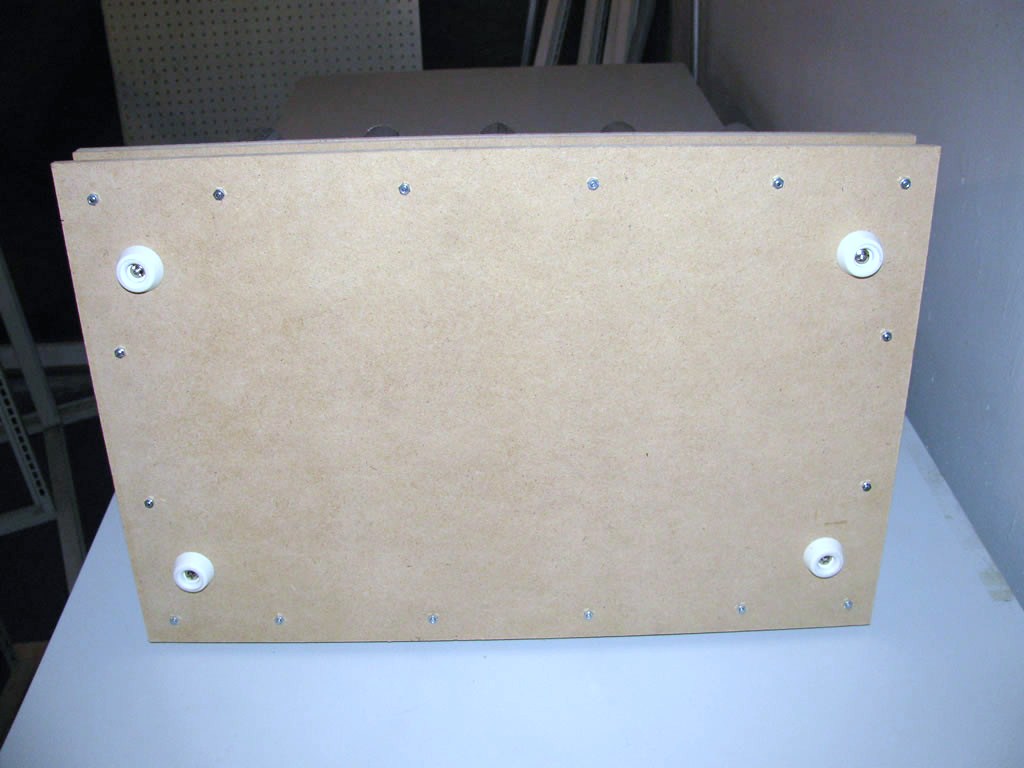
After that's done, start assembling everything. Install the feet and assemble the top and bottom pieces with your M3x40 bolts and 1" spaces.
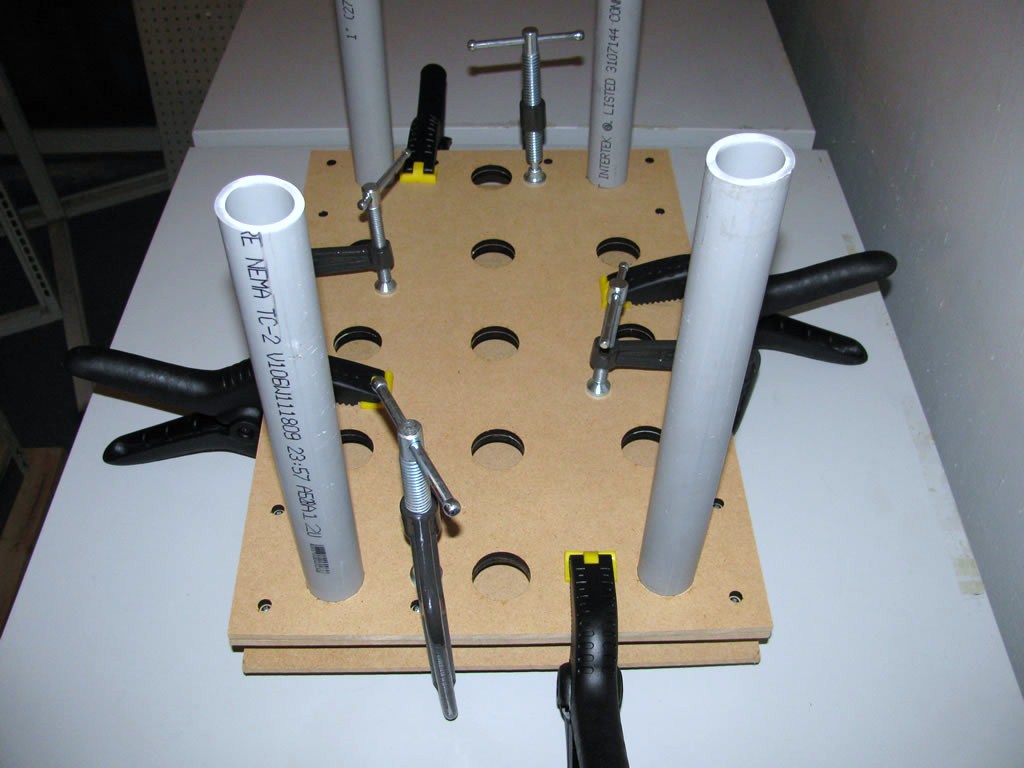
Next you'll install the cover, which will prevent the bolt heads from damaging the ends of the vinyl rolls. Use a couple conduit sections to make sure everything's aligned correctly then glue it to the top layer and clamp it down.
Now all you have to do is wait until the glue dries, remove the clamps, install the rest of the conduit sections and you're done.